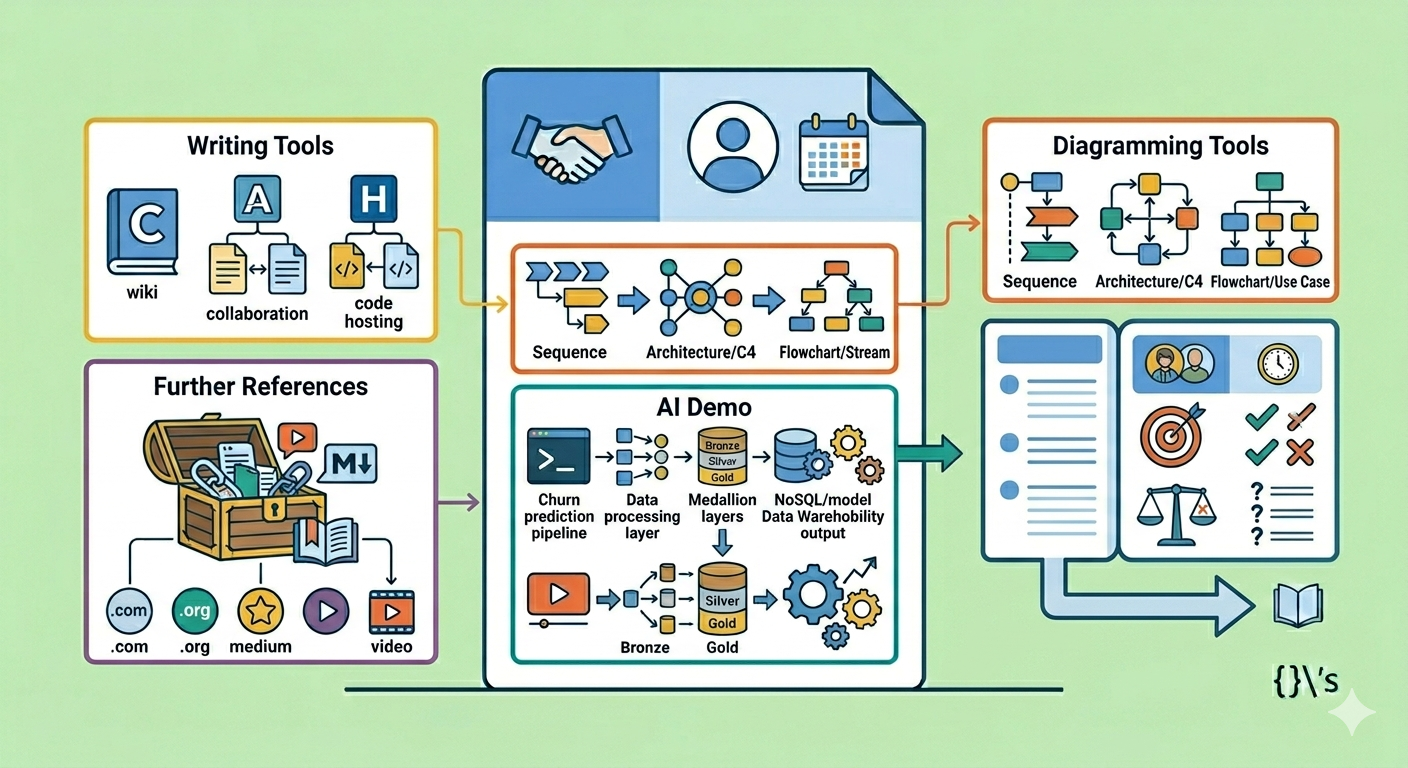
We’ve reached the last part of the series. We’ve already looked at what a design doc is, how to fill in each section, and how it lives over time. What’s left is the most practical part, the one that shows what to write with, where to dig deeper, and how an AI agent can hand you a first draft.
Tools for writing Link to heading
- Confluence. Atlassian’s corporate wiki for creating documents with team collaboration. It integrates with Jira and Bitbucket.
- Google Docs. Online and free, with real-time collaborative editing and easy sharing.
- GitHub. It hosts code and also Markdown documents, with collaborative editing through Pull Requests.
Tools for diagrams Link to heading
- Mermaid. Diagrams as text: sequence, use cases, C4, and more.
- Sequence Diagram. Dedicated to sequence diagrams, textual and quick.
- Structurizr. Diagrams as code: several C4 architecture diagrams from a single model.
The C4 and sequence diagrams that show up in part 2 were made with tools like these.
References to dig deeper Link to heading
- Design Docs at Google (industrialempathy.com)
- An introduction to Design Docs (Inside PicPay)
- How to Write an Effective Design Document (rinaarts.com)
- Design Docs (video) (YouTube)
- RFCs and Design Docs (The Pragmatic Engineer)
Demo: generating a draft with AI Link to heading
The relationship between design docs and AI goes both ways. As my friend Ithalo Alves reminded me, “a design doc can be really useful for feeding context to AI agents. It works as an initial specification and helps guide the implementation”. In other words, beyond serving as input to guide whoever (or whatever) is going to build it, the document itself can be generated with the help of an agent.
It’s that second path that the demo below walks through. For that, I built the design-doc skill, which writes or reviews the document alongside you. It works through interactive discovery. Instead of spitting out finished text, it asks you questions about the problem, the trade-offs, the alternatives, and the teams affected, and only then does it write. The idea is simple: the document that comes out of it is yours, and the questions are what’s hers. Under the hood, it carries the tips we’ve walked through in this series plus what I’ve picked up reviewing these documents in practice. Install the skill with the GitHub CLI command:
gh skill install cassiobotaro/skills design-doc --agent github-copilot
The --agent flag points to the target tool: swap it for claude-code, cursor, codex, and others. If you use Claude Code, you can also install it through the plugin marketplace:
claude plugin marketplace add cassiobotaro/skills
claude plugin install design-doc@cassiobotaro-skills
After that, just kick off the agent with a prompt that brings the context and the constraints. For example:
Draft a design doc for a new data pipeline.
Context: today there is no churn prediction pipeline. We need to process user behavior events (clicks, screen time, purchases) and predict the probability of cancellation within 5 minutes of each action.
Constraints and requirements:
- Goal: end-to-end latency ≤ 5 min; model AUC-ROC ≥ 0.80 over 90 days.
- Volume: roughly 10 thousand events per second via streaming.
- Processing: cleaning, enrichment, and feature store layers. Preference for interpretable models (trees, for example).
- Storage: Medallion architecture (Bronze, Silver, Gold).
- Output: NoSQL database for the application and a Data Warehouse for analysis.
- Out of scope: real-time recommendations and CRM integration.
- Involve: the Security and Infrastructure teams as reviewers.
From there, it hands you a few questions before writing. Answer what you know, because the more context you give, the better the draft turns out. And the result brings exactly what we’ve covered in this series: a header with authors, reviewers, and status; measurable goals and out-of-scope items; alternatives considered with their trade-offs; open questions and a rollout plan.
But keep in mind the reminder that opened part 1: the agent delivers a draft, not a final document.
💡 Tips:
- AI speeds up the writing, organizes ideas, and gets the blank page out of your way, but it doesn’t think for you.
- The value of a design doc lives in the decisions you made, the alternatives you ruled out, and the trade-offs you took on. That comes from your knowledge of the problem and the team.
- Copying and pasting without questioning produces a document that looks like a design doc, not an actual one.
- In review, when someone asks “why didn’t you do it another way?”, the answer has to be in the document because you genuinely reasoned about it, not because it came ready-made out of the prompt.
As Gergely Orosz puts it, “don’t outsource your thinking to AI”. The draft is the machine’s; the reasoning is yours.
End of the series Link to heading
That was the series on design docs. I hope it helps you turn technical decisions into documents that are clear, reviewable, and useful long after the code has shipped.
So that’s it, folks!
See you next time!
{}’s